
(Updated 18/01/2011: Apologies Some Content seemed to have got lost!) Quite a while ago I published a blog entry on Visio Services , and recently I’ve picked up quite a few comments asking when Part 2 is going to happen. Well about 2.5 years after Part 1, comes Part 2
Since Part 1 was pretty much just a showcase of what you can do in Visio Services, I thought Part 2 should be more of a “How To”, and following on from a session I did at the SharePoint Best Practices Conference 2011 in London, in this blog entry I’m going to show you how to create a Simple Server Visio Diagram linked to a SQL Server Database using no code. I’ll provide also the downloads needed to get the example working.
To do this demo yourself, you need a few things:
- The ServerPinger.exe application
- A SQL Server Database
- Visio Professional 2010
- SharePoint 2010 Enterprise CAL
The first you can download from here. The second I’ve supplied a script for here, and you can download SQL Server Express from here, the third and fourth? Sorry, you’ll have to supply yourselves, though you can get evaluation copies of Visio 2010 Premium here and of SharePoint 2010 Enterprise here.
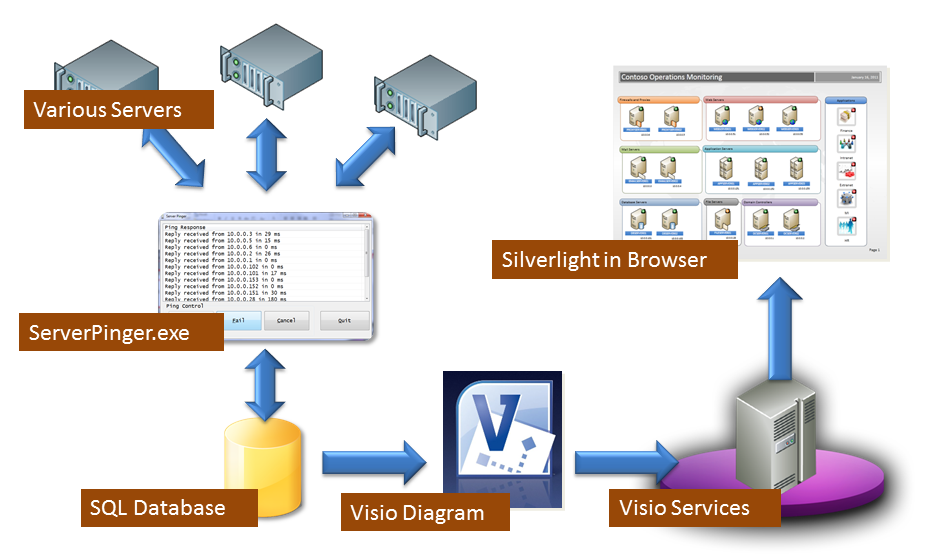
The ServerPinger.exe is a little executable I’ve written to simulate pinging servers on a network. It actually pings a number of public DNS addresses and also your localhost. It stores the results of those pings in a database, and you may need to change the database string which is present in the config file which comes with the exe, so that you can store the results of the pings. We’re going to hook up our Visio Services Diagram to the database and create a data-driven Visio Services Diagram.
So architecturally, our system looks like Figure 1.
Here’s the Steps to do this and what is involved.
Step 1: Create the Server Database by running the Server.sql SQL Script
Step 2: Copy the unzip the ServerPinger.zip file and copy the ServerPinger.exe and ServerPinger.exe.config files to a folder location. Open up the ServerPinger.exe.config file and change the database connection string to point to your database server.
Step 3: Open up Visio 2010 and create a Server Diagram as follows:
File -> New -> Detailed Network Diagram(Metric) -> Create
Shapes Panel -> Rack Mounted Servers (Metric)
Drag on a Database Server, a Server and a Web Server shape.
Select all the shapes, and on the Ribbon click Insert -> Container
Pick a style of Container. This simply adds a frame around our servers.
You should now have a diagram that looks something like Figure 2.

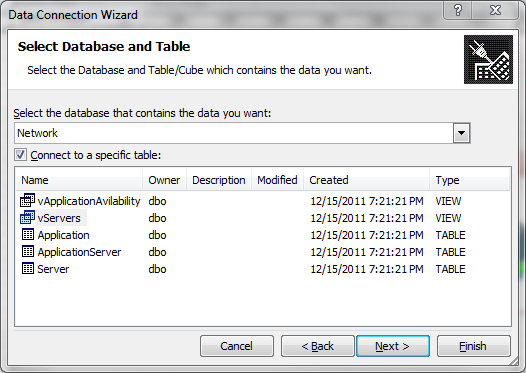
Step 4: Link the Data to the Shapes by simple drag and drop. So in the Ribbon select the Data Tab, click “Link Data to Shapes”, in the dialog box, select “Microsoft SQL Server database”, click Next then enter your server name, use “Windows Authentication” or put in a Username and Password, dependent upon how you access you SQL Server, then click Next. From the drop down, select the “Network” database and click “Connect to a Specific Table” and select “vServers”. So your dialog box should look like Figure 3.
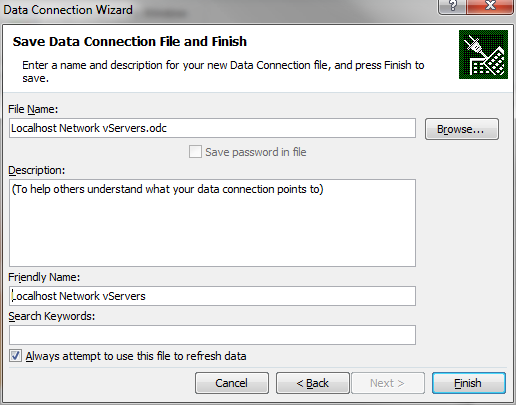
When you click “Next” you get to fill out the various details of the Office Data Connection which will be used to connect the Visio Services diagram to the data source. Make sure you check the box which says “Always attempt to use this file to refresh data” as in Figure 4
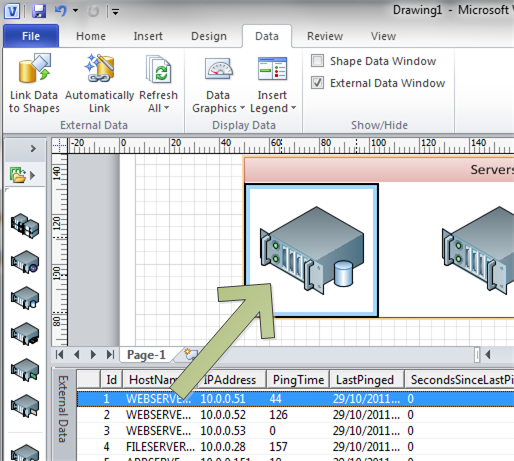
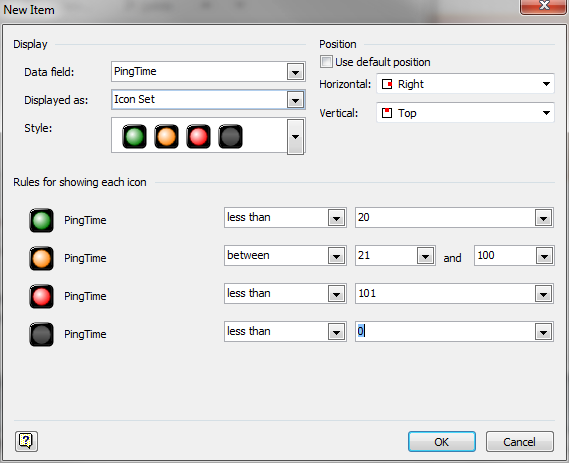
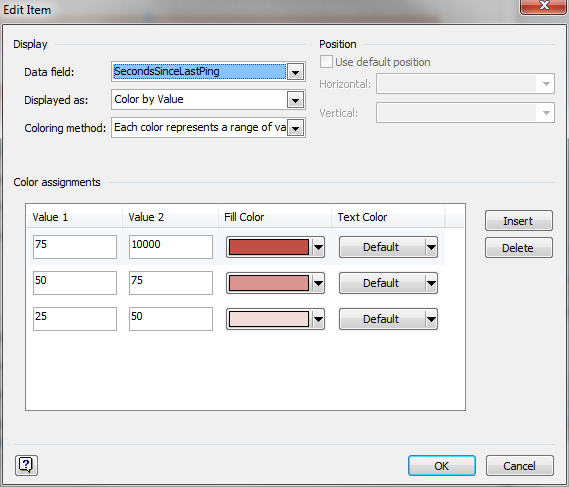
Click “OK” and “Apply”. Now we are done designing, we just need to publish.
Step 6. To publish to our SharePoint site we simply do File -> Save & Send -> Save to SharePoint -> Web Drawing -> Save As, and then select the SharePoint Library you wish to publish to. Visio 2010 itself looks after the conversion of the file into a VDW format, but in order to view a Visio Services diagram in the browser, you must have a SharePoint Farm with Enterprise CAL and a Visio Services Service Application enabled and your Web Application must be associated with that Service Application.
One other thing. Don’t necessarily do this in production, but go to your Visio Services Service Application in Central Administration, go to Global Settings and in the “Minimum Cache Age” textbox type “0”. This will disable caching of the rendered silverlight controls, otherwise you will not immediately see changes in the diagram when the data changes.
Once the Visio diagram is converted and published, Visio should open a browser window and you should see our diagram in all it’s glory. You need to click the yellow “Enable” button to allow Data Refresh. I’ve not found a way of disabling that yet unfortunately …
To test our diagram, start up the ServerPinger.exe application and click “Start” to start the pings going. Your diagram should then look something like Figure 8:
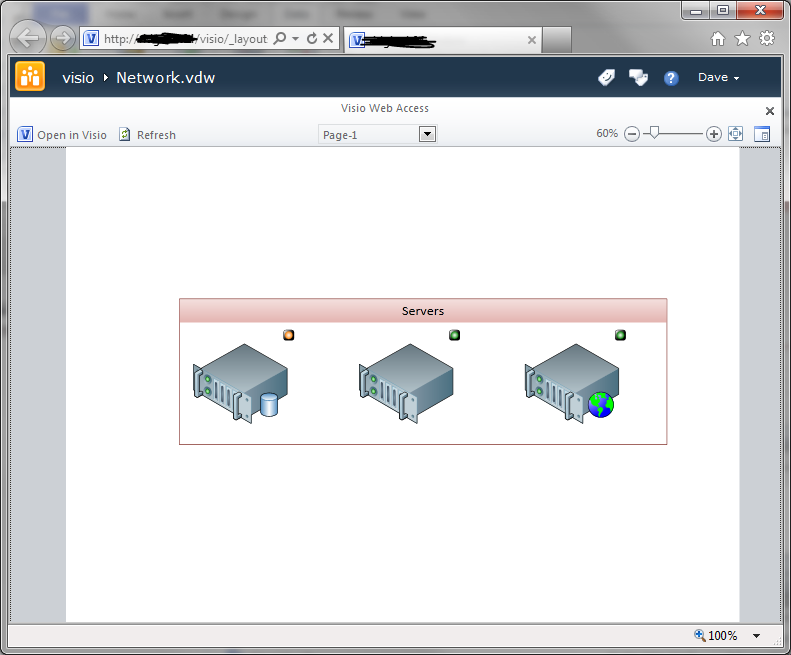
Now click “Fail” and wait a few seconds and you should see your diagram change to something like Figure 9.
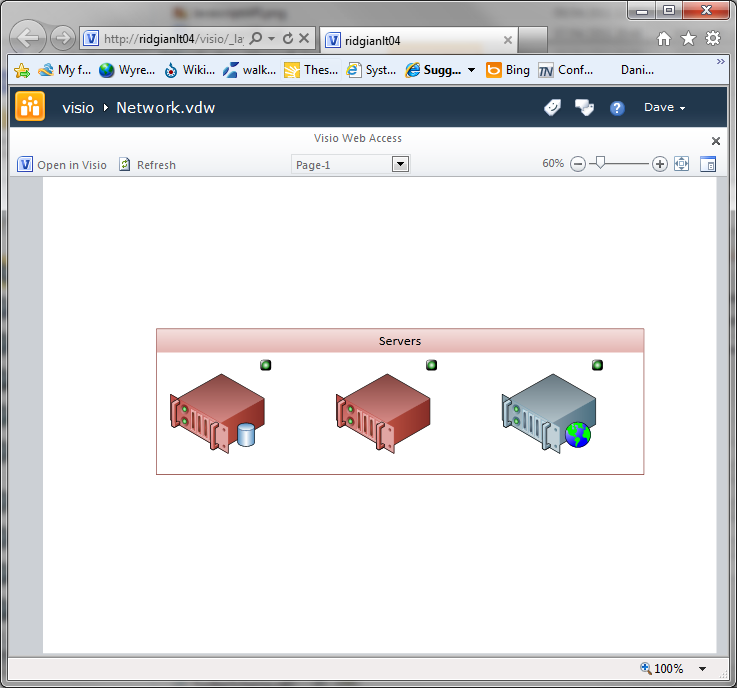
Pretty cool huh? Simple, easy, but so , so effective and communicating data.
In Part 3, which hopefully you won’t have to wait quite so long for, I’ll cover writing a Custom Data Connector to communicate with any ad-hoc data source.
Cheers
Dave Mc







 Dave Mc's Blog
Leave a comment