
Introduction
This is Part 1 of a series of articles on Visio Services. One of the most exciting new features of SharePoint 2010 is the new Visio Services which enables you to publish data-bound Visio Diagrams to the web to view in either a full page screen or in a web part. It’s a fantastic new addition to your arsenal of functionality within SharePoint and allows you to display data in new and original ways, or add real value-add to traditional ways of showing information. For example, one of the classic uses of Visio is to draw up diagrams of your Server Farm.
The samples here have all been produced with the Beta 2 release, and the final release may or may not have all of these features – but I hope it does!!
So take a look at this diagram rendered in Visio Services in SharePoint 2010 which shows a fictitious network layout based on server role:
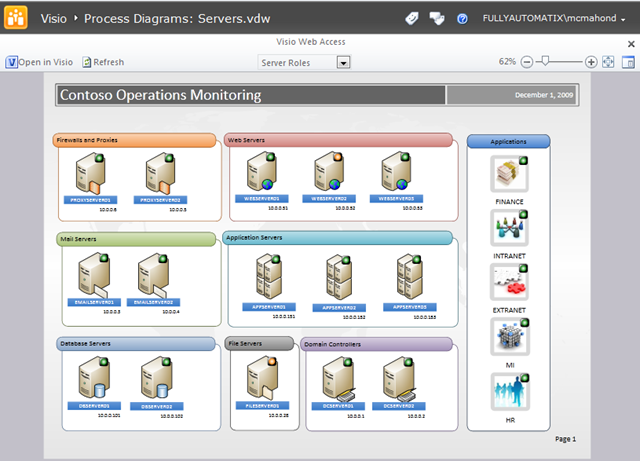
A number of things about this diagram are:
The diagram is rendered in Silverlight, but if company policy does not allow Silverlight it will be rendered as a PNG.
The diagram is zoom-able and pan-able and you can easily re-centre the diagram using the controls on the upper right.
You can refresh the diagram by itself using AJAX without having to re-render the whole page.
You can show multiple pages on a diagram using the page drop down in the middle.
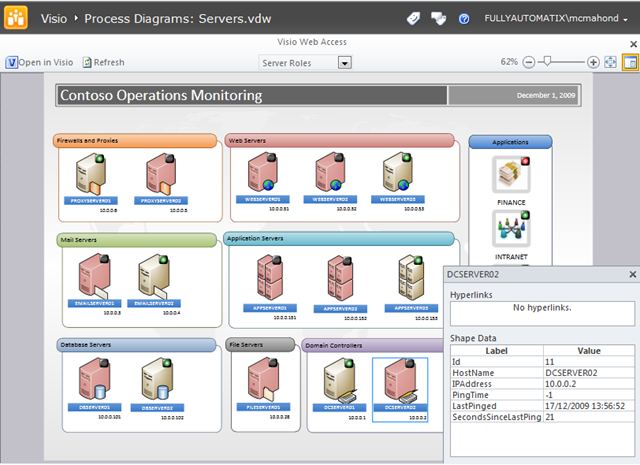
The diagram is data-bound. The colours of the servers indicate the health of the servers. If connectivity is lost, the servers change from their natural colour , through a disgusting pink to a more serious red! See Figure 2 below. In addition the traffic light icon at the top right shows the speed of reply from a standard ping. If the light is green, then the ping has responded in quick-time, amber a longer period, red a longer period still and if it goes black then the ping failed.
The diagram is bound to two different data-sources. One is a SQL Server Database View which in the right-hand column indicates the health of various business critical applications, the remainder of the page is linked to a second data-source which is another SQL Server View and shows the status of the individual servers.
In the far right on the top bar is a button which toggles the shape-data grid which displays the custom data items for each of the shapes. This is shown in Figure 2 as well.
Notice also a new feature of Visio 2010. Containers. These are the boxes which group the server shapes together. I think they are simple and very cool, they again make the representation of information easy.
There is a wide range of features available to you to help you develop engaging and exciting intelligent diagrams using Visio Services.
Data Sources
You can connect to a whole range of data sources. SQL Server Databases, Excel Spreadsheets, SharePoint Lists, OLEDB and ODBC data-sources and if that doesn’t suffice, the framework is extensible and you can create your own custom data provider. We’ll take a look at how to do that in a later part.
Shapes and Icons
You can create your own icons and probably other types of Data Driven shapes and we’ll also take a look at that in a later Part.
Javascript API
In order to provide some additional capabilities, there is a JavaScript API available to allow you to interact with your Visio Services Diagrams and connect them to items on your web page.
Web Part Connections
Finally you can use Web Part Connections to link other web parts to Visio Services Web Parts and Visio Services WebParts to each other.
Some more Samples
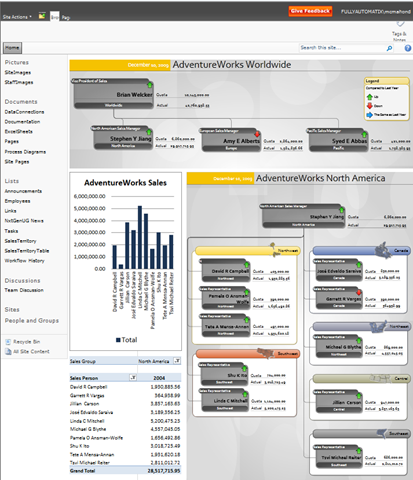
Here’s a few more screenshots of some other Visio Services Diagrams. The first one shows two Visio Services diagrams on the same page within web parts, they are connected using the JavaScript API. You can also see an Excel Services chart on the same page;
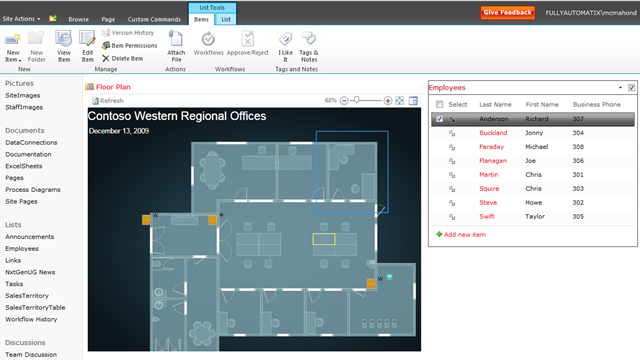
The next one shows a floor plan connected to a SharePoint list using Web Part Connections which allows you to highlight various areas of the Visio Diagram.
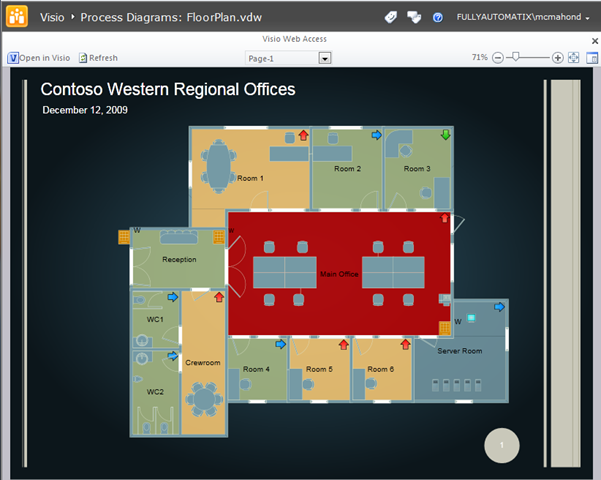
Finally the last one shows another floor plan but linked to a Custom Data Provider which supplies room temperature. As the data changes, i.e the room temperature changes, it indicates through colours the actual temperature, and through the icons the direction in which the temperature is moving, up, down or staying constant.
Getting Started
So how do you get a Visio Services diagram together? It’s pretty easy really. Here are the steps you need to take:
- Identify the Data Source you want to connect to.
- Create your Diagram in Visio 2010.
- In Visio 2010, link your shapes to your Data Source.
- Publish your Diagram to a SharePoint Server directly from Visio 2010.
- Click on a link in a SharePoint list to view the diagram in full screen mode or create a WebPart page and add in the Visio Graphics Web Part and set the URL of the diagram you wish to view.
Those are the steps and we’ll take a look at them in a bit more detail in Part 2 of this series. This posting was really just a taster of things to come …
Cheers
Dave Mc









Leave a reply to Wilson Cancel reply